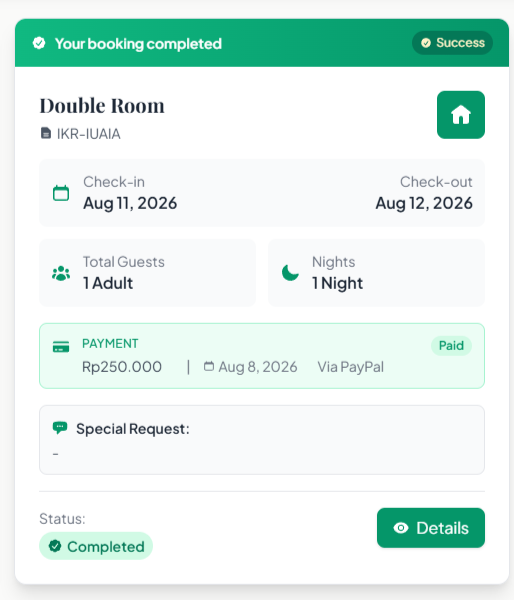
Step-by-step process to check room availability, select dates, confirm booking, and complete payment securely via PayPal.
FAQ: How to Book a Room
Step 1 - Make sure you are logged in (if not, follow the login guide → [click here]).
Step 2 - Ensure your profile is complete (if not, see the profile completion guide → [click here]).
Step 3 - Go to the Rooms page, then scroll down to the Rooms Availability section.
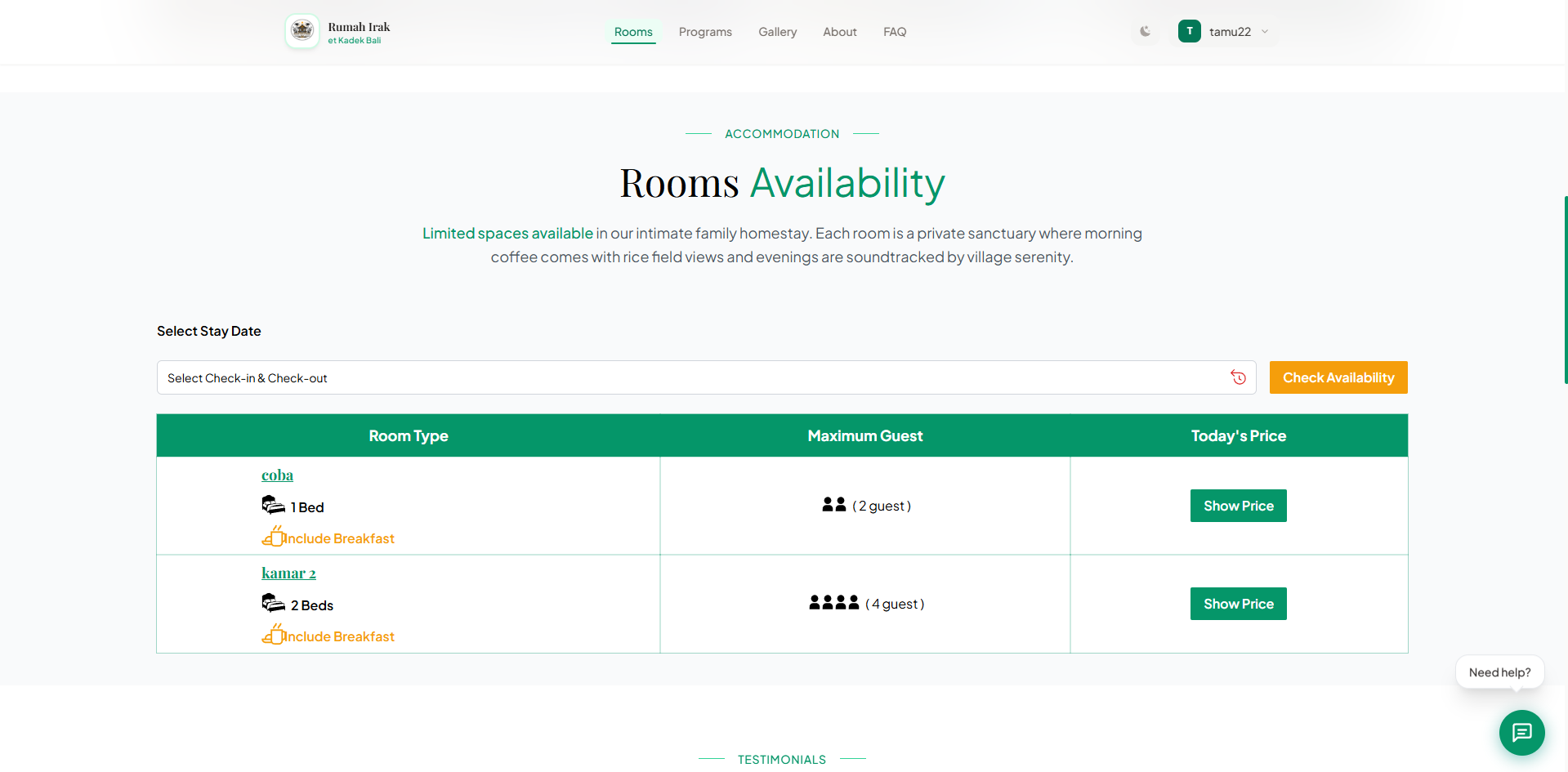
Step 4 - In the Select Stay Date field, enter your Check-in and Check-out dates.
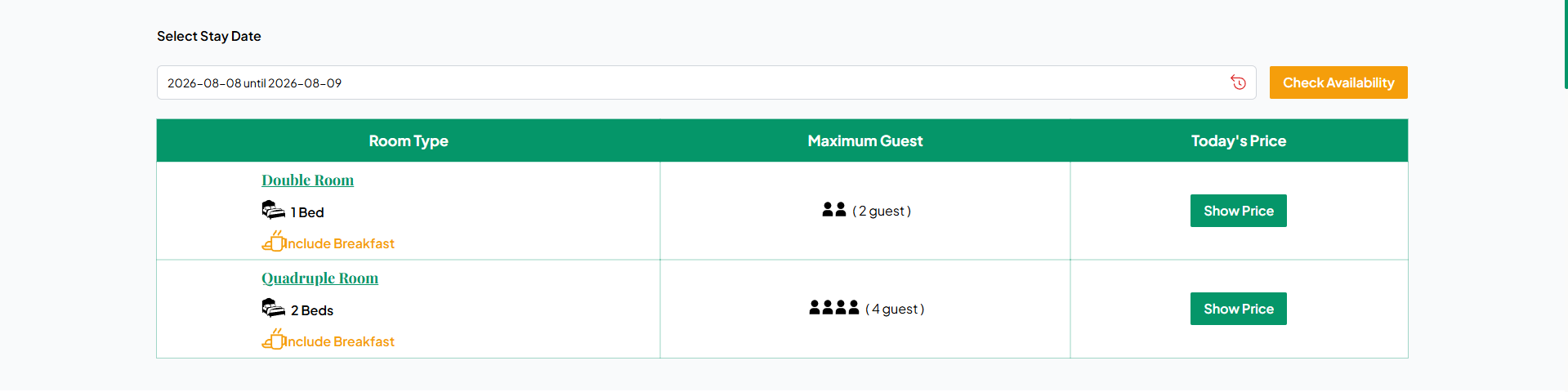
Step 5 - Click Check Availability. Available rooms will be displayed based on your selected dates.
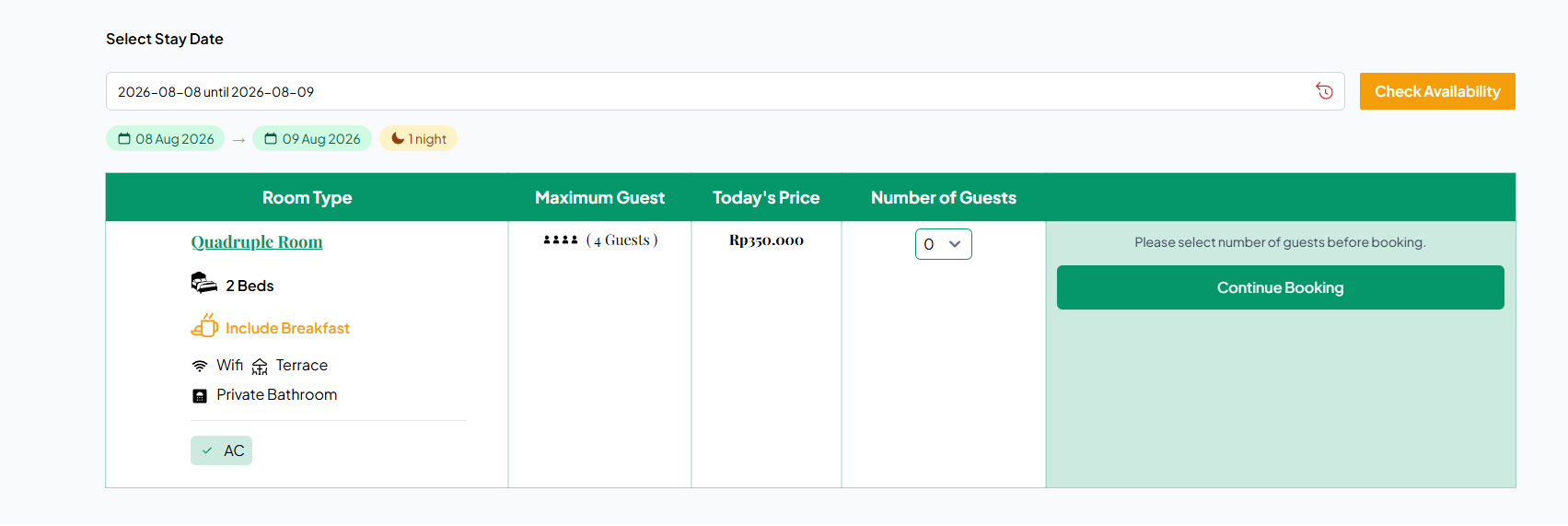
Step 6 - Choose the room you want, enter the Number of Guests to see booking details and the estimated total price.
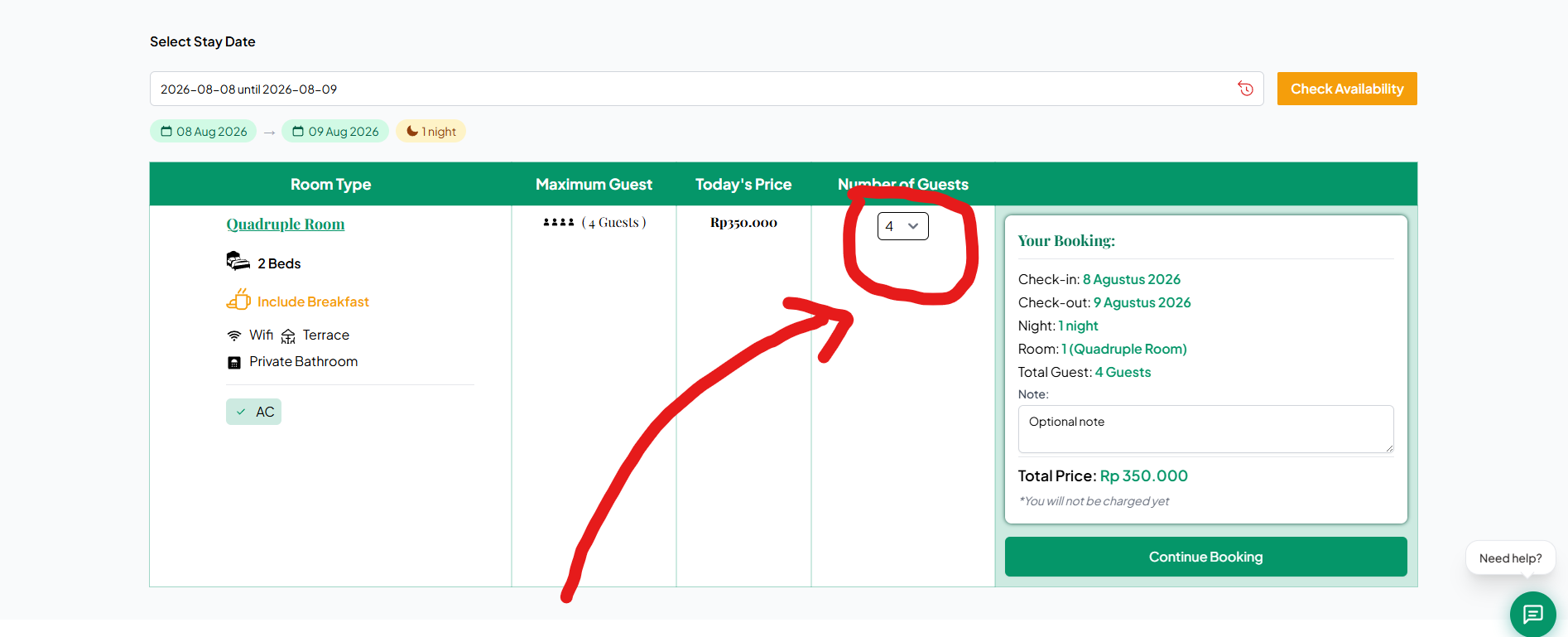
Step 7 - Optionally, fill in the Note field if you want to provide additional information.
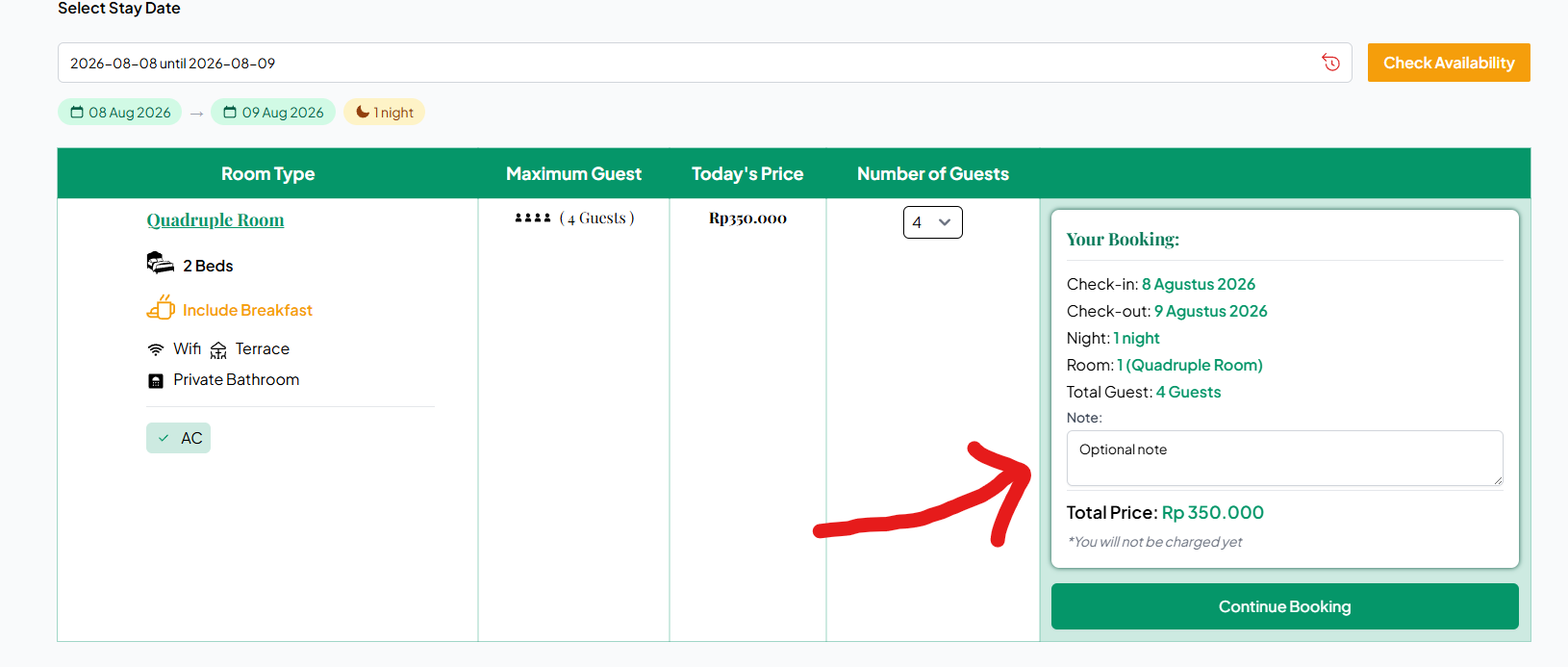
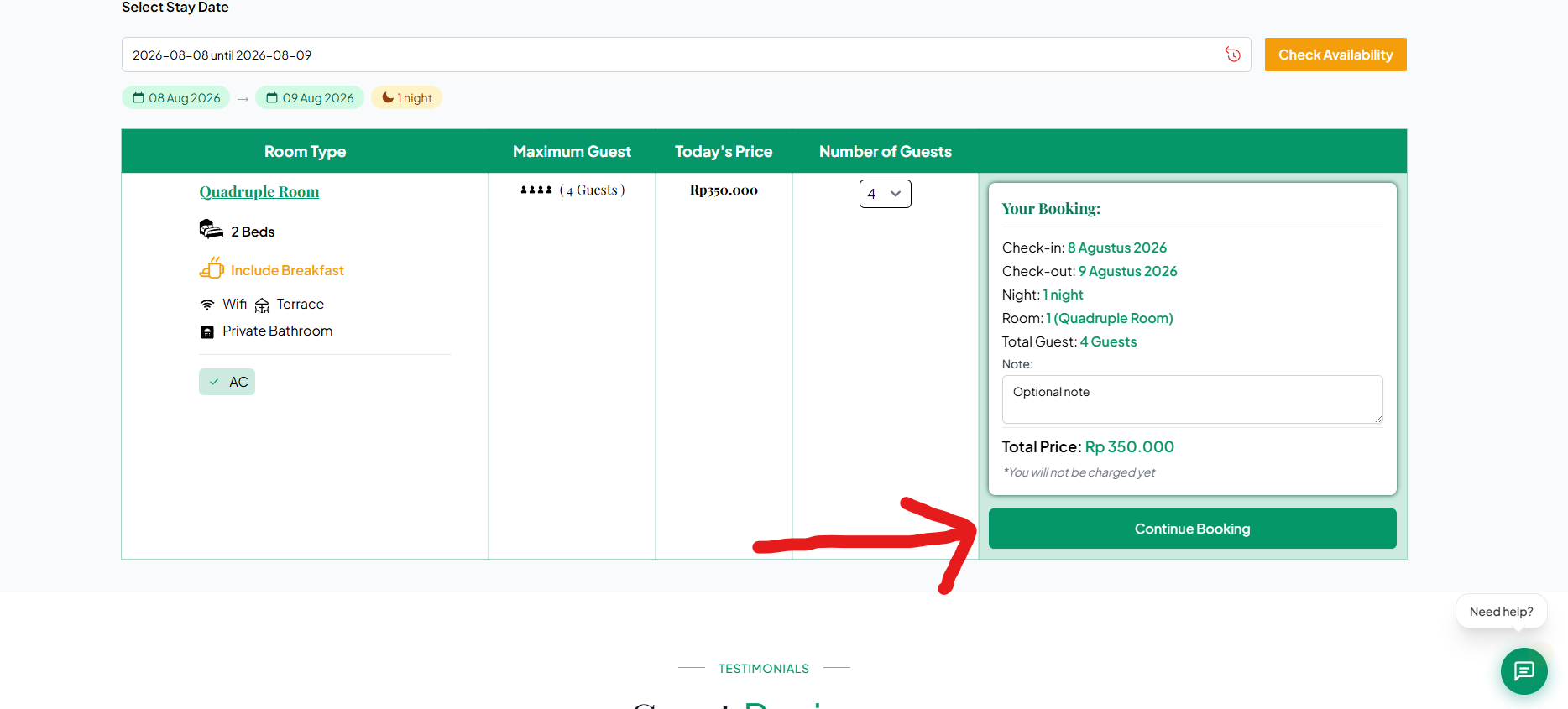
Step 8 - Click Continue Booking to proceed (no payment required at this stage).
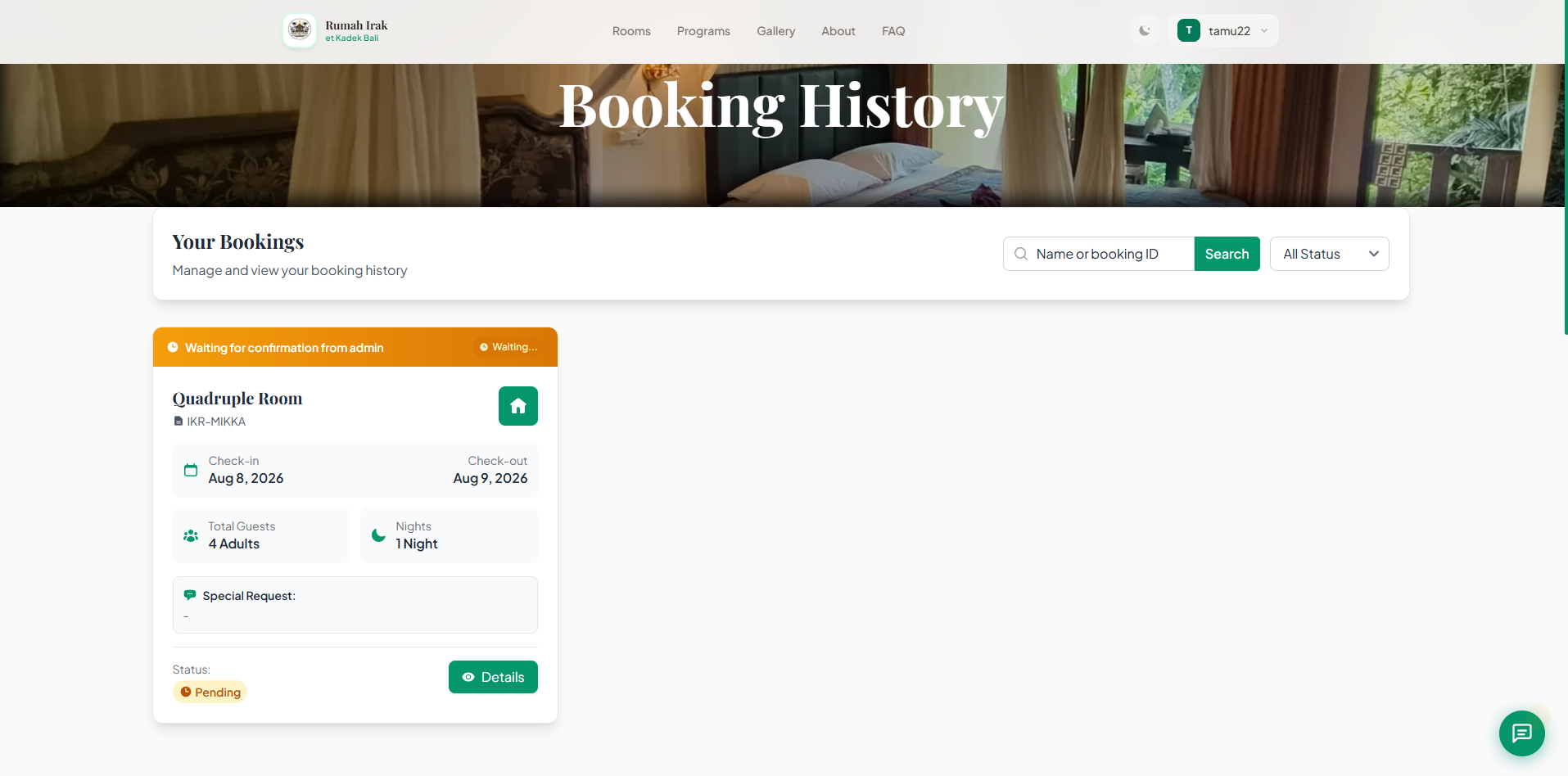
Step 9 - You will be redirected to the Booking History page. Please wait for admin confirmation to avoid double booking.
Step 10 - Once confirmed by the admin, click Pay Now on your booking card, then click Pay Now again in the booking details.
- Make sure to complete payment before the Waiting for Payment deadline expires.
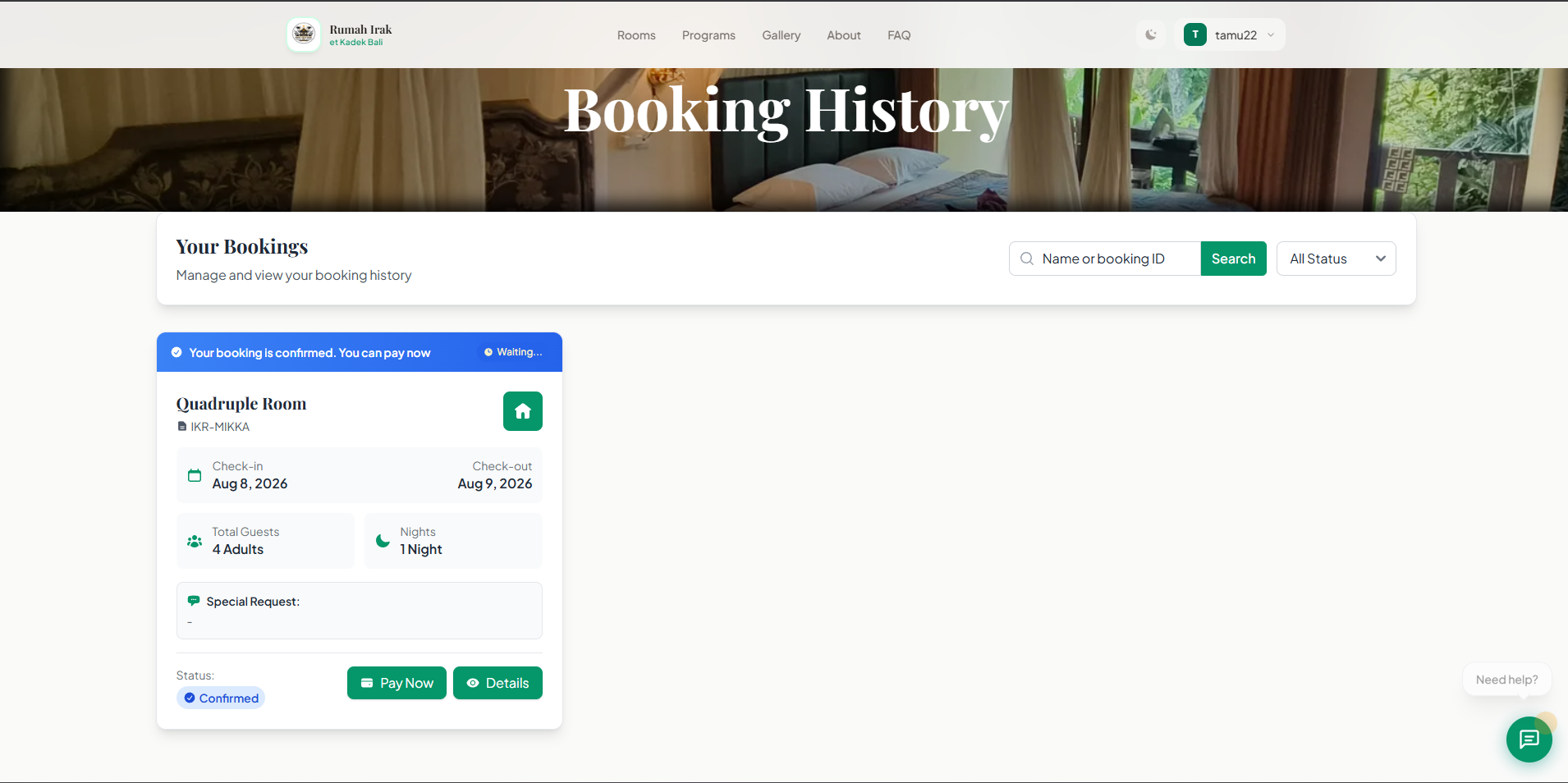
Step 11 - On desktop/laptop, a new PayPal window will open. Enter your payment details accurately.
- You can view booking details by clicking the payment amount at the top right corner.
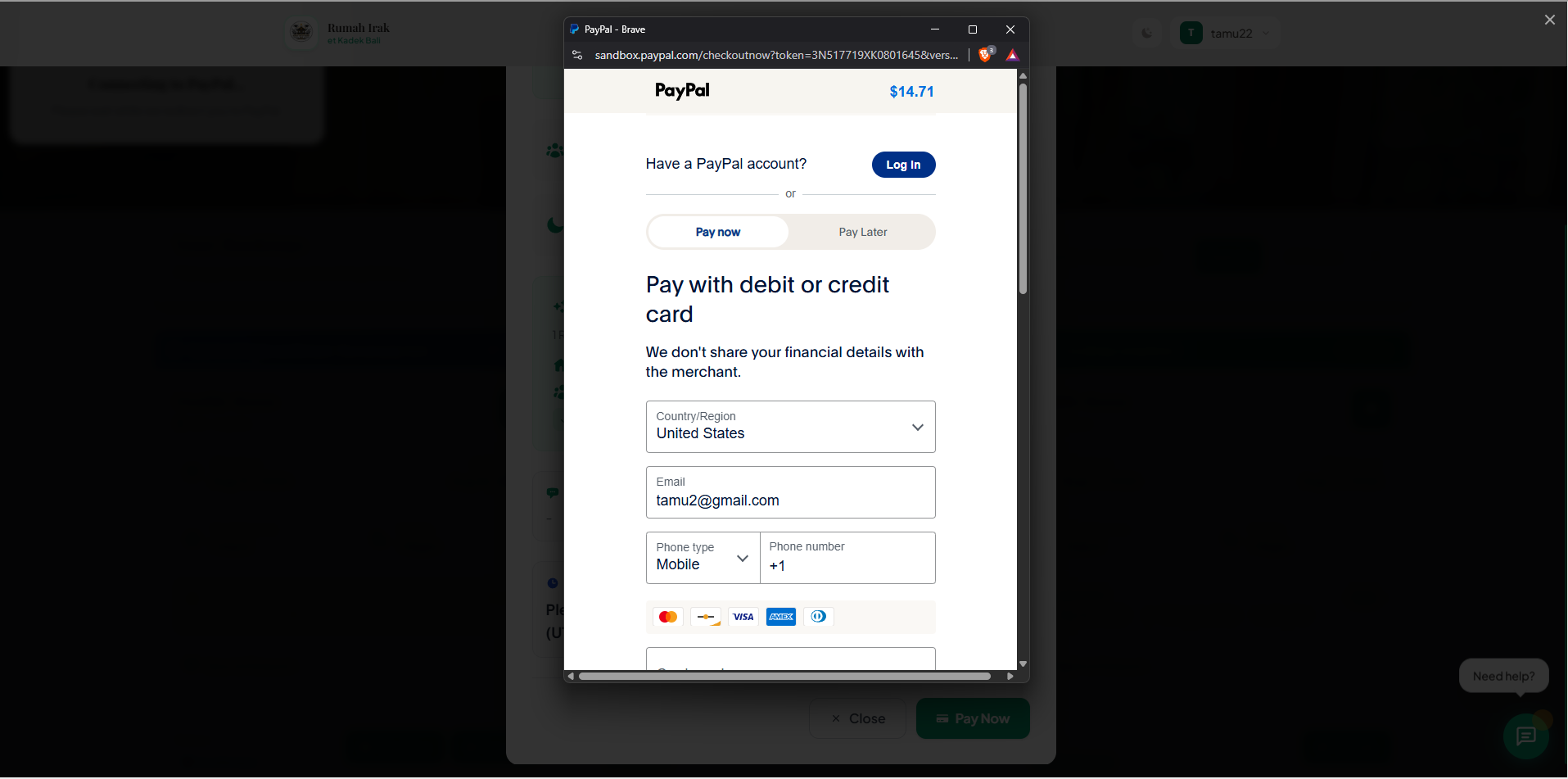
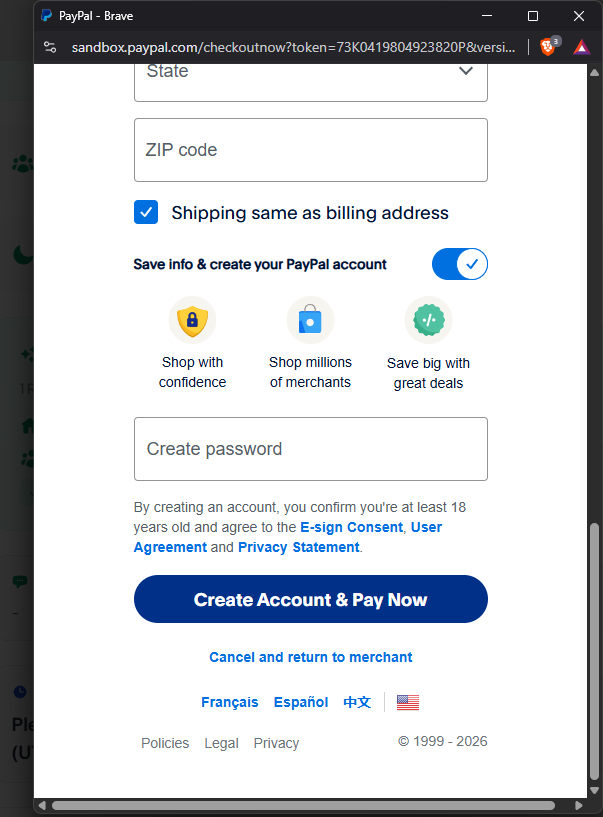
Step 12 - Choose whether to save your payment info:
- On: Save info & create a PayPal account (requires PayPal password).
- Off: Proceed without saving info.
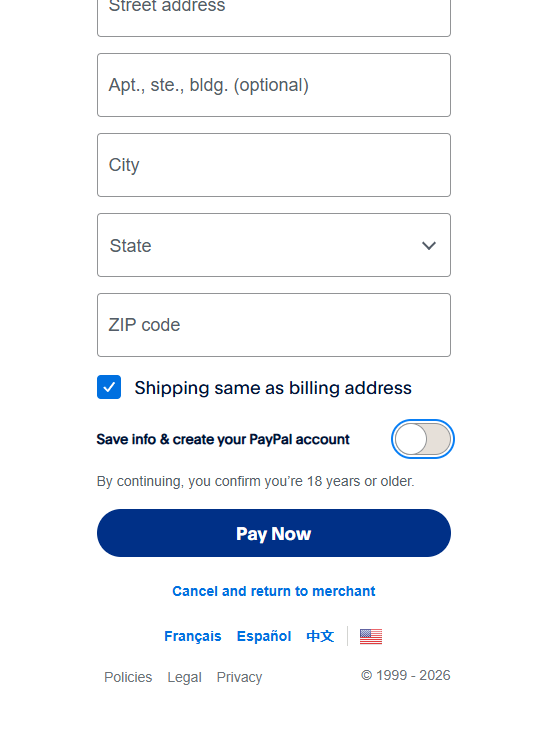
Step 13 - Click Pay Now to finalize the payment.
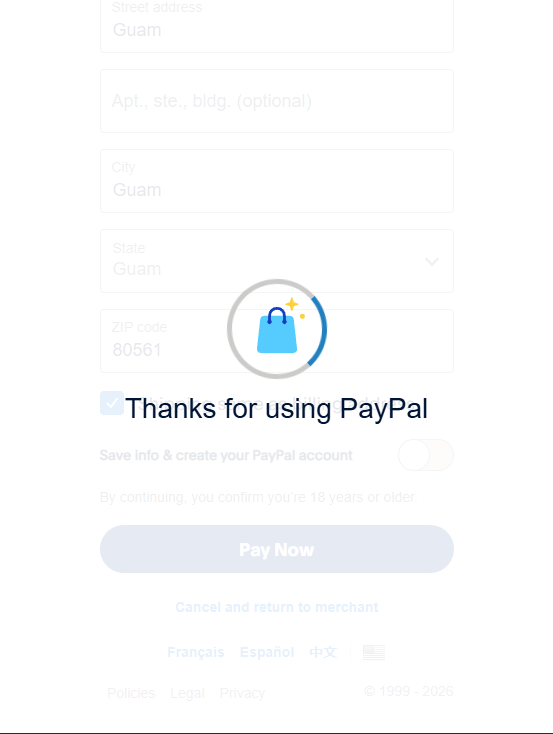
Step 14 - If successful, PayPal will display Thank you for payment.
- On PC/laptop, the window will close automatically.
- On mobile, return to the website tab and check your booking status. It should show Completed with payment confirmation via PayPal.
Step 15 - Your booking is complete. Please check in and check out according to your reservation.
- A check-in reminder will be sent to your registered email.